The three ways in
Browse
For when you know roughly what you're after — a set you're completing, or one Pokemon you collect everywhere it shows up. Browse lays the cards out so you can see the whole shape of it.
Browse · walk a set
Set Pokédex ✓
✓


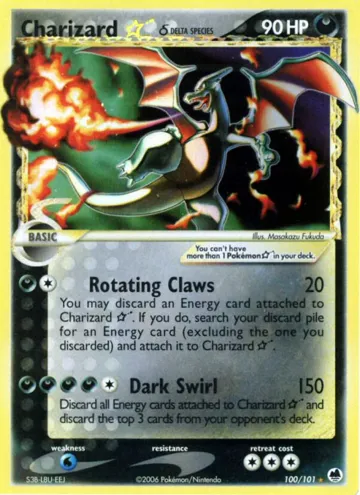
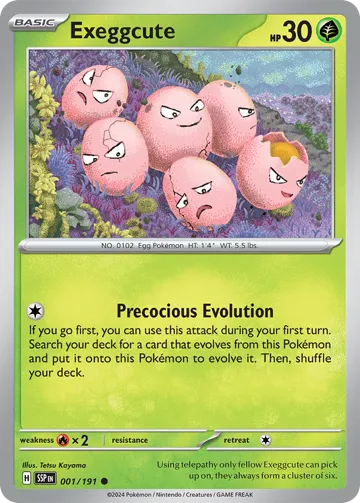

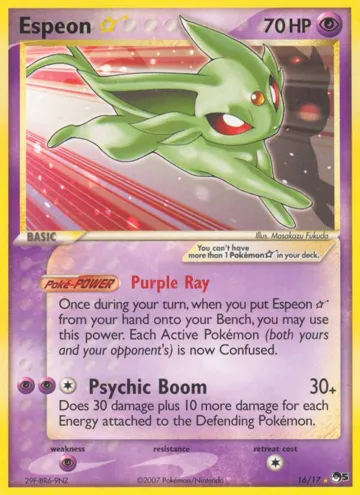
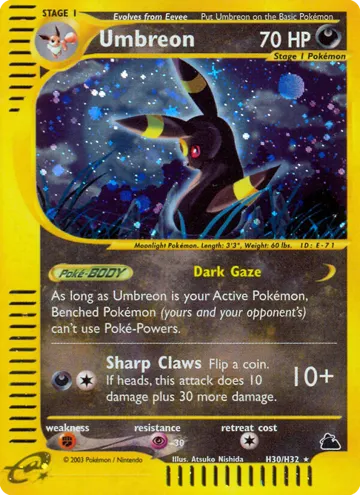
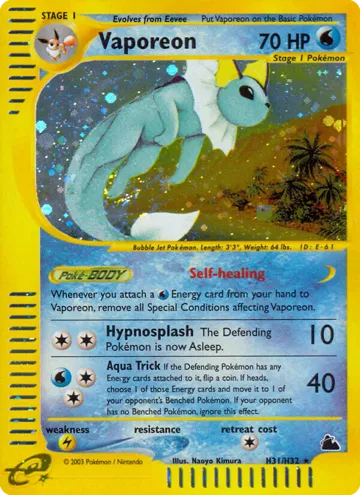
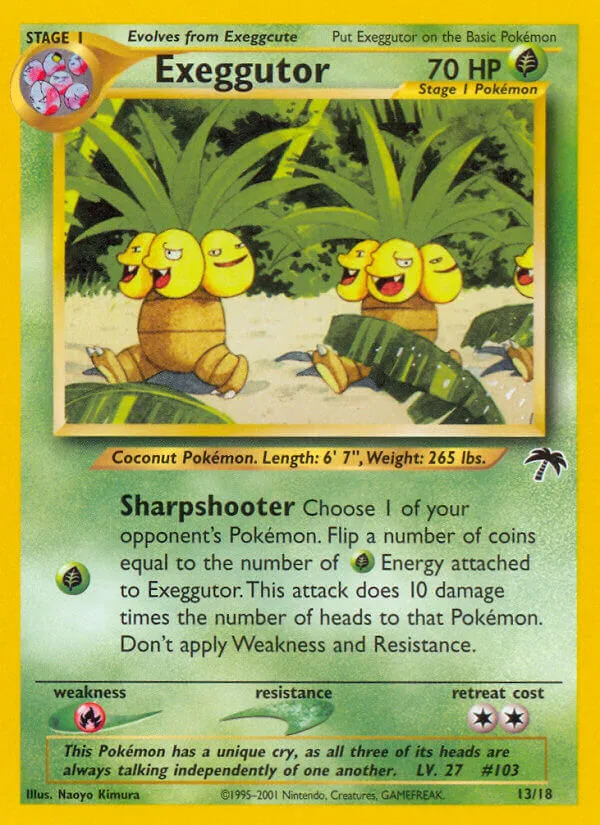
Two ways to organize it
A toggle flips the whole panel between two organisations:
Set view
Drill down series → set → cards, in set order. This is how you walk a set: open it and page through every card from 1 to the end, gaps and all.
Pokedex view
Pivot by national dex number instead — pick a Pokemon and see every printing of it across every set. Built for the species collectors chasing one line.
Save as you walk
Every card carries the same one-tap actions you'll see everywhere in the app — mark it wishlist (chasing) or owned, and an ownership badge shows what's already in your collection. When you're walking a set, the set header's New ▾ menu can spin up a wishlist seeded from the entire set, so completing it is one action instead of a hundred taps.
Tip: Browse pairs well with Search — seed a wishlist from a set here, then price the whole thing and export a binder page. Open the demo and switch to the Browse tab.